
If you are constantly getting that annoying “Storage Full” notification on your phone or worrying about losing years of family memories, you should buy the Picture Keeper Connect right now.
I have spent years trying to manage cloud subscriptions and complicated transfer cables, but nothing has simplified my digital life like this tangerine-colored genius.
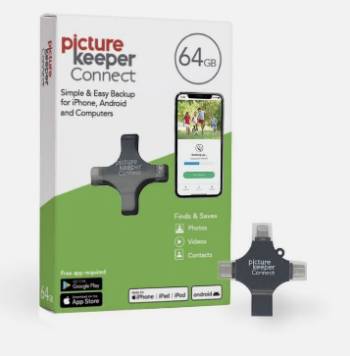
It is a versatile, lightweight 128GB USB 3.0 flash drive that works across iPhone, Android, PC, and Mac without needing a single bar of WiFi.
In this review, I will explain why this tiny device is your data’s new best friend and how it can help you preserve your family treasures forever.
My Experience: Saving a Lifetime of Memories
I recently found myself in a position that many of you might recognize: I was tasked with going through multiple trunks of family history, including old scrapbooks, military unit records, and thousands of loose photos.
Initially, I tried using standard thumb drives and cloud uploads, but the process was painfully slow and I constantly worried about duplicates or losing the connection halfway through a batch of scans.
I started using the Picture Keeper Connect and the difference in my workflow was immediate and, frankly, life-changing for my project.
The most impressive part for me was the sheer simplicity; I just plugged it into my phone and the app handled the rest, automatically finding the new files without making me hunt through folders.
I have actually filled several smaller 32GB versions of these in the past, but the 128GB and 256GB models are what really allowed me to scale up my digitizing project for my entire extended family.
I am currently in the process of making 17 copies of our direct family line history to share as Christmas gifts, a goal that would have been prohibitively expensive if I were using other hardware or professional services.
Even when I upgraded to a new iPad that used a different connection than my old phone, the Connect series proved its worth by being compatible with almost every modern device I own.
I even bought a pair for my best friend and his wife, both in their 80s, who were terrified of losing their phone photos but hated the complexity of traditional downloading.
Watching them successfully run a backup by simply plugging the drive in was proof enough for me that this is designed for real people, not just tech experts.
It has allowed me to turn a massive, intimidating collection of family items into a organized digital archive that I can now share with everyone I love.
Maintenance Tips for Your Picture Keeper
To ensure your memories stay safe for years to come, you should treat your Picture Keeper with the same care you would give to the original physical photos.
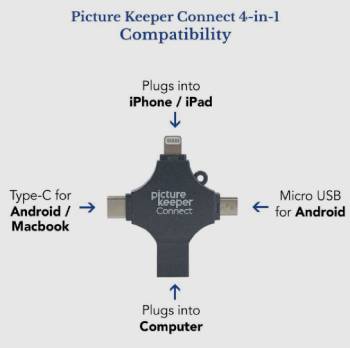
You must keep the protective cap on the USB and lightning connectors whenever the drive is not in use: dust and lint from your pocket can cause connection failures or even damage your phone’s port.
Store the drive in a cool, dry place away from direct sunlight: extreme heat can degrade the flash memory over time and potentially lead to data corruption.
Always ensure your phone or tablet has at least 20% battery life before starting a backup: a power failure in the middle of a data transfer can occasionally cause errors on the drive.
Update the Picture Keeper app regularly: the developers frequently release patches to ensure compatibility with the latest versions of iOS and Android.
Label your drives if you own more than one: using a small sticker or a dedicated storage case will help you remember which drive contains the family military history and which one has the safari photos.
Periodically verify your backups on a computer: plug the drive into your PC or Mac once every few months just to scroll through the files and ensure everything is readable.
Avoid “ripping” the drive out of the port: always wait for the app to tell you the backup is complete and safe to disconnect to prevent file system errors.
If the drive becomes dirty, use a dry microfiber cloth to wipe it down: never use water or cleaning chemicals on the electronic connectors.
Consider a “redundancy” plan for your most important treasures: I personally use my Picture Keeper to move photos to my computer, then I store the PK drive in a fireproof safe as an extra copy.
Pros and Cons of the Picture Keeper Connect
Pros of the Picture Keeper Connect
- The most significant advantage is the intelligent skip technology: the software automatically recognizes which photos and videos have already been backed up, meaning you never waste space on duplicates during subsequent sessions.
- The device functions perfectly without WiFi: this is a huge plus for travelers or anyone who wants to back up photos while on an African wildlife safari or in remote areas where internet is non-existent.
- Cross-platform versatility is built-in: it works seamlessly across iOS, Android, PC, and Mac, making it the perfect bridge for households that use a mix of different operating systems.
- The user interface is incredibly simple: the app is designed to be intuitive enough for an 83-year-old to use without frustration, which is a rare feat in the world of data storage.
- It offers a high-speed USB 3.0 interface: transferring large video files or high-resolution scans doesn’t take all day, which is essential when you are dealing with thousands of family items.
- Portability and weight: the lightweight design means you can keep it in your pocket or a small purse, ensuring you always have a backup solution ready when your phone storage hits its limit.
- No monthly fees: unlike cloud storage services that charge you every month for the rest of your life, this is a one-time purchase that gives you total control over your physical data.
- Excellent for large-scale projects: the ability to easily swap between drives or move up to higher capacity models like the Pro SSD makes it a scalable solution for amateur historians.
Cons of the Picture Keeper Connect: Points to Consider
- Physical size limitations: while the 128GB and 256GB models are great for most users, those with massive 1TB phone capacities might find they need several drives to complete a full initial backup.
- App dependence: you cannot simply drag and drop files like a standard flash drive on a phone; you must use the proprietary Picture Keeper app to facilitate the “smart” backup features.
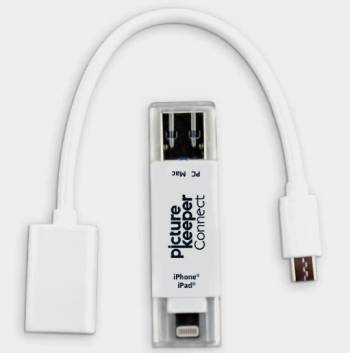
- Physical connectors: while it works with many devices, users with very old phones or specific new models may still need an adapter if the port type doesn’t match the drive’s built-in plugs.
- Heat generation during large transfers: when I was backing up several thousand photos at once, I noticed the drive and the phone port became quite warm to the touch.
- Case compatibility: some thick, rugged phone cases might prevent the drive from seating fully into the charging port, requiring you to remove the case before starting a backup.
- Cost per gigabyte: if you are looking purely at the price of raw storage, you can find cheaper generic flash drives, though you would lose the specialized backup software that makes this product unique.
- Initial backup time: the very first time you use the device to scan a full phone, it can take an hour or more depending on how much data you have stored.
- Limited file type support: the app is primarily optimized for photos and videos, so if you are trying to back up obscure document formats or app data, it might not be the right tool.
- SSD vs Flash speed: compared to the Picture Keeper Pro SSD units, this standard flash version is slightly slower at handling 4K video files or extremely large bursts of photos.
- No automatic cloud sync: this is a physical backup solution, so if you lose the drive itself, you lose the data unless you have made a second copy on a computer or another PK device.
Also Read: Comparison Of Comcast Xfinity Vs. Verizon Fios
Picture Keeper Connect Vs. Other Brands
- Picture Keeper Connect Vs. SanDisk iXpand
The SanDisk iXpand is a popular alternative, but I found that its app is significantly more cluttered and difficult to navigate for non-tech users.
While SanDisk offers high-speed transfers, the Picture Keeper skip technology is much more reliable at preventing the duplicate file nightmare that often plagues my phone.
The SanDisk design often has a flexible “swivel” or “loop” that I worry about snapping over time, whereas the solid build of the Picture Keeper feels more durable for long-term storage.
If you want the most user-friendly experience for elderly family members or someone who just wants a “one-click” solution, Picture Keeper is the clear winner.
- Picture Keeper Connect Vs. PhotoStick Omni
The PhotoStick Omni is often marketed heavily on social media, but I have found that its software can be a bit more “glitchy” on certain Android models.
The Picture Keeper Connect feels like a more “premium” product in terms of the actual hardware quality and the speed of the USB 3.0 interface.
I also appreciate the tangerine color and the straightforward branding of Picture Keeper, which makes it easier to find in a messy drawer full of grey and black cables.
For someone doing a massive project involving thousands of family scans, the stability of the Picture Keeper app provides a much-needed peace of mind.
- Photo Keeper Connect Vs. Generic Flash Drives
Using a generic flash drive with an adapter for your phone is technically possible, but it requires you to manually select, copy, and paste every single file.
Without the Picture Keeper app, you have no way to automatically skip duplicates or keep track of where your last backup left off.
I tried the manual way for a week and ended up with dozens of folders that were impossible to sort through, eventually spending more time fixing the mess than I did on the project.
The small extra cost of the Picture Keeper hardware is actually a massive saving when you consider the hours of manual labor it saves you.
- Picture Keeper Connect Vs. iCloud or Google Photos
Cloud storage is great for “syncing,” but it isn’t a true physical backup that you can hold in your hand and give as a gift.
I have found that many of my older family members don’t trust the cloud and prefer knowing their photos are on a physical drive that doesn’t require a password or an internet connection.
Picture Keeper is a one-time cost, whereas cloud services will charge you every single month for the rest of your life just to keep your photos accessible.
For sharing family history as a Christmas surprise, a physical drive is a tangible, meaningful gift that a shared digital folder can’t match.
- Picture Keeper Connect Vs. External Hard Drives
Standard external hard drives are great for capacity, but they usually require a computer to act as a middleman between your phone and the drive.
The Picture Keeper Connect removes that middle step, allowing you to go directly from your mobile device to the storage.
This is essential for people who do most of their photo taking and organizing on a tablet or smartphone and rarely open a laptop.
While you get more space for your money with a desktop drive, you lose the extreme portability and the “plug-and-play” simplicity of the Connect stick.
Also Read: My Experience With Helium Mobile Service
Frequently Asked Questions (FAQs)
The original Picture Keeper is primarily for computers, while the Connect version includes specialized plugs and an app to work directly with iPhones, iPads, and Android devices.
Yes, if you value your time and want a foolproof way to back up photos without duplicates or monthly cloud fees, it is an excellent investment.
Absolutely; it is a physical storage device that doesn’t require an internet connection, keeping your private family photos away from hackers or cloud data breaches.
Yes, the app is free to download on the App Store and Google Play Store and is required to use the device’s specialized backup features on your phone.
Final Thoughts
If you want to finally organize those trunks of family history or just ensure your kids’ childhood photos are safe, you should buy the Picture Keeper Connect today.
I have found that no other device makes the transition from a cluttered phone to a safe, organized digital archive so incredibly easy.
You can stop paying for cloud storage you don’t fully understand and start taking control of your family’s most precious digital treasures.
It has been the key to my project of creating 17 Christmas surprises for my family, and I am certain it will be a reliable partner for your memories too.
Don’t wait for your phone to crash or for a cloud service to disappear; get your physical backup ready now.